
Greenwald Pay Help
Find installation instructions, set up Greenwald Pay devices, check status lights, find a kit for your machine, and get help in one place.
On this page: Before you start · Installation guides · Device setup · Device lights · Model Lookup · Laundry-room flyer · Get help
Disclaimer: Navigation, labels, and available products may differ in newer versions.
Before you start
- Use Model Lookup to find the installation kit for your machine.
- Create the room and machine profiles in Greenwald Management System (GMS) before installation.
- Have your Greenwald Pay device, smartphone, administrator sign-in details, and the tool or operator key needed to open the machine panel ready.
- Follow the safety and power instructions in the installation guide for your kit.
Choose your installation guide
Kit | Machine |
|---|---|
Maytag /Whirlpool | |
Maytag /Whirlpool for Dual Coin | |
MDC/QTM for Dual Coin | |
MDC/QTM | |
ACA (No Power Supply) | |
ACA (24VAC Power Conditioner) | |
ACA (120 LineV Power Supply) | |
LG Dual Coin | |
Encore-Dual Coin Dryer | |
Encore-Dual Coin Washer |
For Quantum Gold Pro machines, see Enable serial payment on Alliance Quantum Gold Pro machines.
For MultiPay hardware, use Install MultiPay Reader on Alliance ACA machines.
Set up the installed devices
- Turn on all washers and dryers with Greenwald Pay devices installed in them or one at a time it doesn’t matter. The control consoles should be open and the Greenwald Pay devices should be visible to see the LED light. (It should be slow blinking white)
- Label each machine with W1-W99 for washers and D1-D99 for dryers
- Download the “Greenwald Pay” app from the Apple or Google Play store.
- Log into the app with your admin credentials. Note: If you do not have admin credentials then you will need to get these from a system administrator or you will need to be added as a Greenwald Management System (GMS) user with admin privileges.
- Tap the Admin button at the top of the app
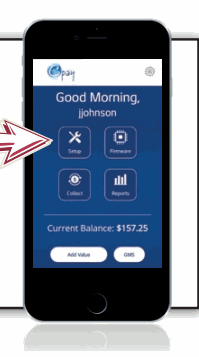
- Tap the Setup button located in the room window.
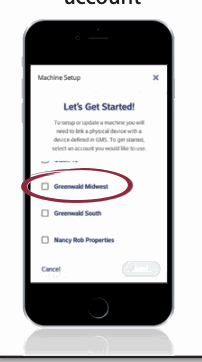
- Select the appropriate account from the Accounts pull down menu. Note: Accounts are created and edited in the GMS website.
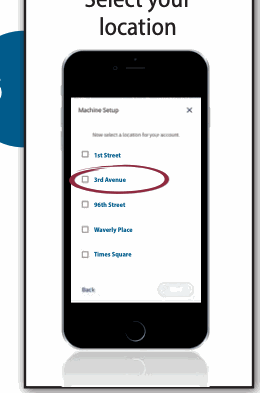
- Select the appropriate location from the Locations pull down menu. Note: Locations are created and edited in the GMS website.
- Tap the Next button. This will bring you to the Machines screen.
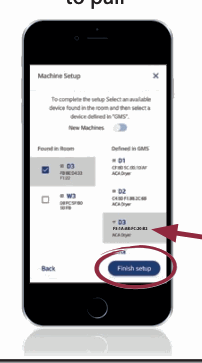
- Select a Greenwald Pay device from the right column under Room. The Greenwald Pay device selected will turn blue.
- Then select the Assignment from the left column that matches the label installed on the machine (from step 2) that has a solid blue light on.
- Tap Update setup on the bottom of the App
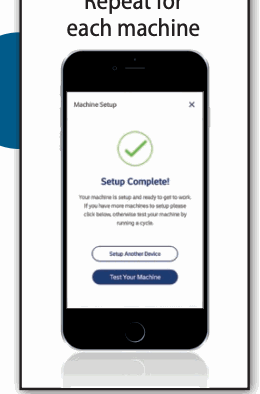
- Repeat steps 10-12 until all machines and Greenwald Pay devices are assigned
- Close all machine console panels and the install is complete
For a video walkthrough, see Set up a machine from the mobile app. For status-light meanings and setup help, see Troubleshoot Greenwald Pay setup and LED states.
Setup screenshots
Device status lights
Color | Activity | Meaning |
|---|---|---|
Off | Off | Device not connected to power |
White | Slow Blink | Device not configured |
Blue | Steady | Selected during configuration |
Yellow | Slow Blink | Loading machine configuration |
Green | Steady | Configured & ready |
Blue | Slow Blink | Active with phone app |
Green | Fast Blink | Active, Start not pressed |
Green | Slow Blink | Busy, machine running |
Red | Slow Blink | Machine Error |
Red | Fast Blink | Machine Interface Error |
Blue/Green | Slow Toggle | Firmware Loading |
Red | Steady | Firmware Error |
For more device problems and answers, see Troubleshoot Greenwald Pay setup and LED states.
Model Lookup
Select your machine brand and enter the model number from its label. The lookup will show the installation kit or tell you when Greenwald needs to confirm it.
Enable JavaScript to use Model Lookup. For help finding a kit, call (860) 526-0800 or email GRSales@greenwaldindustries.com.
If your exact model is not listed, contact Greenwald to confirm the correct kit before ordering.
Post the laundry-room flyer
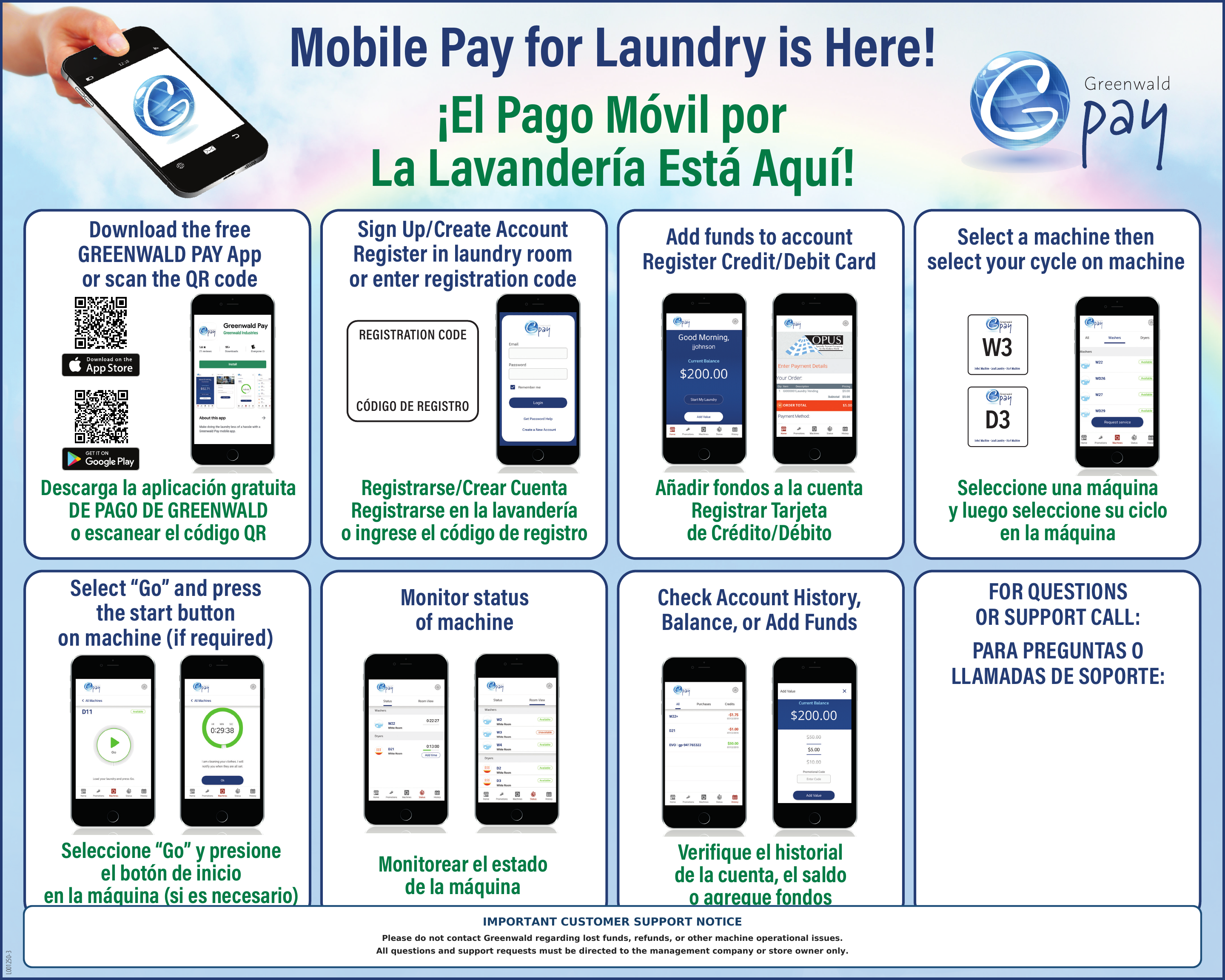
Download the Greenwald Pay laundry-room flyer (PDF, English and Spanish).
Print the flyer for your laundry room. Fill in the room's registration code and the management company or store owner's support phone number before posting it.
The flyer shows customers how to get the app, register, add funds, start a machine, and check their laundry. It directs questions about lost funds, refunds, and machine problems to the management company or store owner.
Need help?
Laundry customers: Contact your management company or store owner for lost funds, refunds, or machine problems. Use the support details posted in your laundry room.
Installation and device setup: Call Greenwald at (860) 526-0800 or email GRSales@greenwaldindustries.com.
Include your name, email address, laundry-room location, machine brand and model, and a description of the problem. Mention any light pattern or error message you see.
You can also use the online Greenwald support form.
For individual guides, browse Field Installation & Support.